Table of Contents
Overview

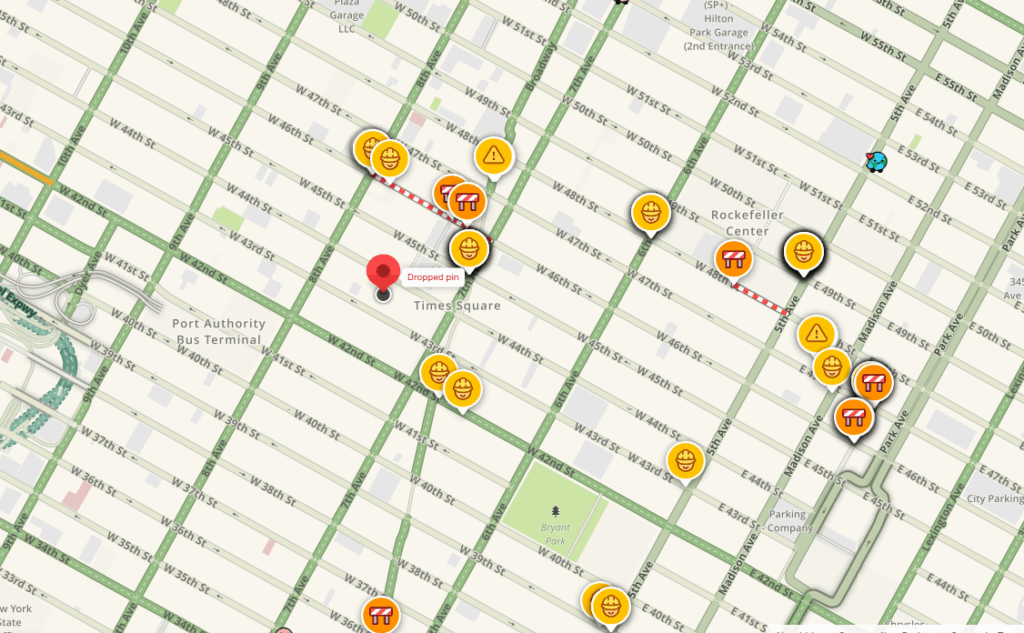
Display Waze Traffic Updates on your screen. Use the embed link to share real-time traffic data, and keep your team informed and up to date.
Creating a Waze App
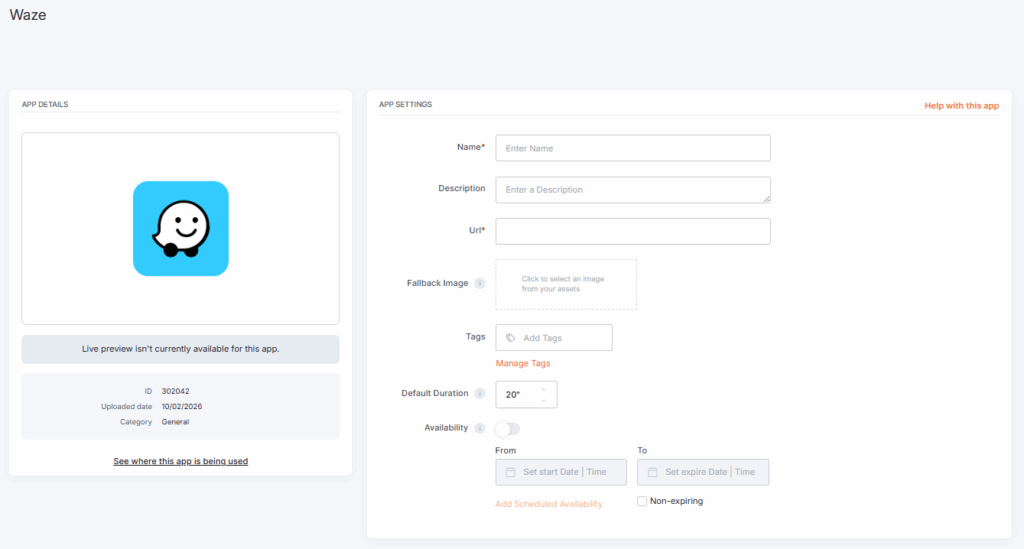
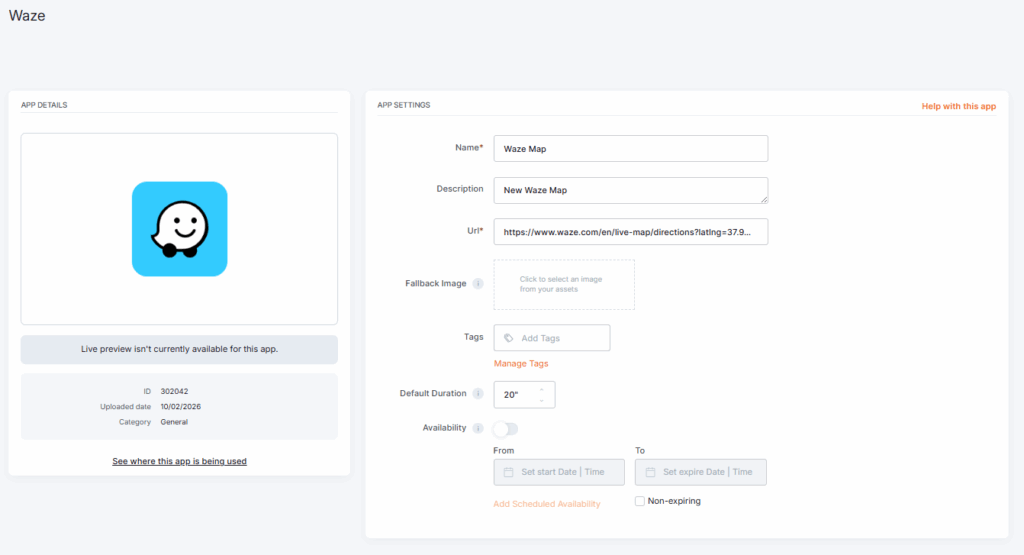
Click on the Waze app within your app gallery to add it, and fill in the app details as follows:
- A name and an optional description are required for the app.
- Paste the map ‘URL’ as it appears in Waze settings, under the Share and embed section.
You can check the next section on how to get the Map’s URL. - Of course, you can upload an image to the Fallback Image button to display if the app fails to load.
- You can also set a tag for this app to manage it better in the future.
- Set the Default Duration so that the app will appear in a playlist.
- You can set the Availability.
Reducing the App Size
Reducing the widget size in layout mode may cause web elements (e.g., search bars, captchas) to appear in the viewport. Always check the preview before assigning it to screens.
How to get the Map URL from Waze
- Visit this page, https://www.waze.com/, with your browser and navigate to the desired location you want to display.
- Then, open the settings (from the box of driving directions, highlighted in green).

- Select the Share and embed option.

- And on the pop-up window that appears, select the Share the map tab.

- You can then click on the Copy button to paste the map into the Url field of Yodeck’s Waze app.

- After completing the configuration, please click on the Save button.
Waze app example
F.A.Q.s
Got questions? We’ve got answers! This section addresses common questions about the Waze app.
Can I embed driving directions on my display?
No. Embeds cannot display driving directions (a route from an origin to a destination). You can only embed a single pinned location.