Overview

The Google Reviews app of our platform puts the reviews from your Google Business Profile on your screens. You log in with Google, pick your business, and choose which reviews qualify and how they look. Your screens then rotate through the reviews, with your overall Google rating above them and a QR code that invites viewers to leave a review of their own. A screen of five-star reviews at the counter, in the waiting area, or by the entrance does the talking for you, and the QR code turns a happy customer into your next review.
Before you start
Make sure you have:
- An active Platform account with access to Apps.
- A verified Google Business Profile for the business you want to show, with at least one public review.
- A Google account that is an owner or manager of that profile. Only owners and managers can connect it. If you are neither, ask the profile owner to invite you from Business Profile settings, under People and access.
💡Several locations? Each Google Reviews app links to one business. Create one app per location, then add them to a playlist to rotate through them or give each screen the app for its own location.
How the Google Reviews app works
- You log in with Google once, inside the app, and select the business whose reviews you want to show.
- The platform fetches the reviews of that business and keeps only the ones that pass your filters: star rating, how recent they are, and the keywords they mention.
- Your screens play the qualifying reviews one slide at a time, each for the Review Duration you set, with your overall Google rating above and the QR code below if you keep them on.
- The platform keeps checking the profile for new reviews, so a fresh review reaches the screen without anyone touching the platform.
ℹ️Your screens receive the finished slides only. They never log in to Google.
Check your Google Business Profile
Everything the app shows comes from your Business Profile, so a minute on Google first saves a trip back later.
- Sign in to Google with the account you plan to use in our platform and open your Business Profile. Search for your business name on Google or go to business.google.com.
- Check that the profile is verified and that the reviews you want to show are public. The app displays only what Google shows publicly.
- Check your role. Click Menu, then Business Profile settings, then People and access. Your account needs to appear as Owner or Manager.
- Reply to or report a review here if you need to. The app shows reviews as they stand on Google.
⚠️The app cannot single out one review. If there is a review you never want on a screen, take it up with Google from your Business Profile or plan your Rating filter around it.
Creating a Google Reviews App
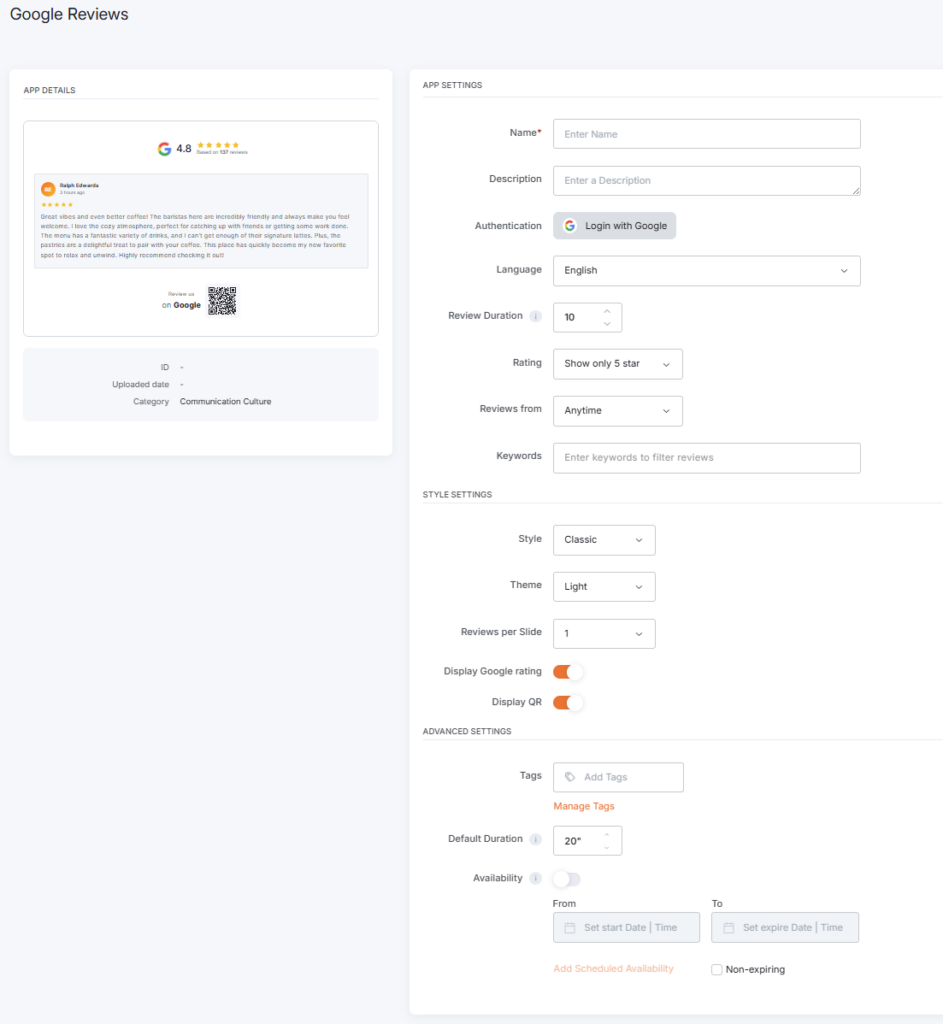
To display the Google reviews of your business on your screens, click on the Google Reviews app within your app gallery to set it up, and complete the app details as follows:
- Navigate to the left Main Menu and select the Apps tab.
- Next, click the Create App button, then find and select the Google Reviews app. You can also find it under the Communication Culture category.
- Once the app pop-up window appears, click the Use App button. The form opens with a Help with this app link at the top, which brings you back to this article.
- Now, you need to provide a Name for the app, and you can include an optional Description. Name it after the business or location, for example “Google Reviews, Downtown store”, so it is easy to find in My apps and in playlists.
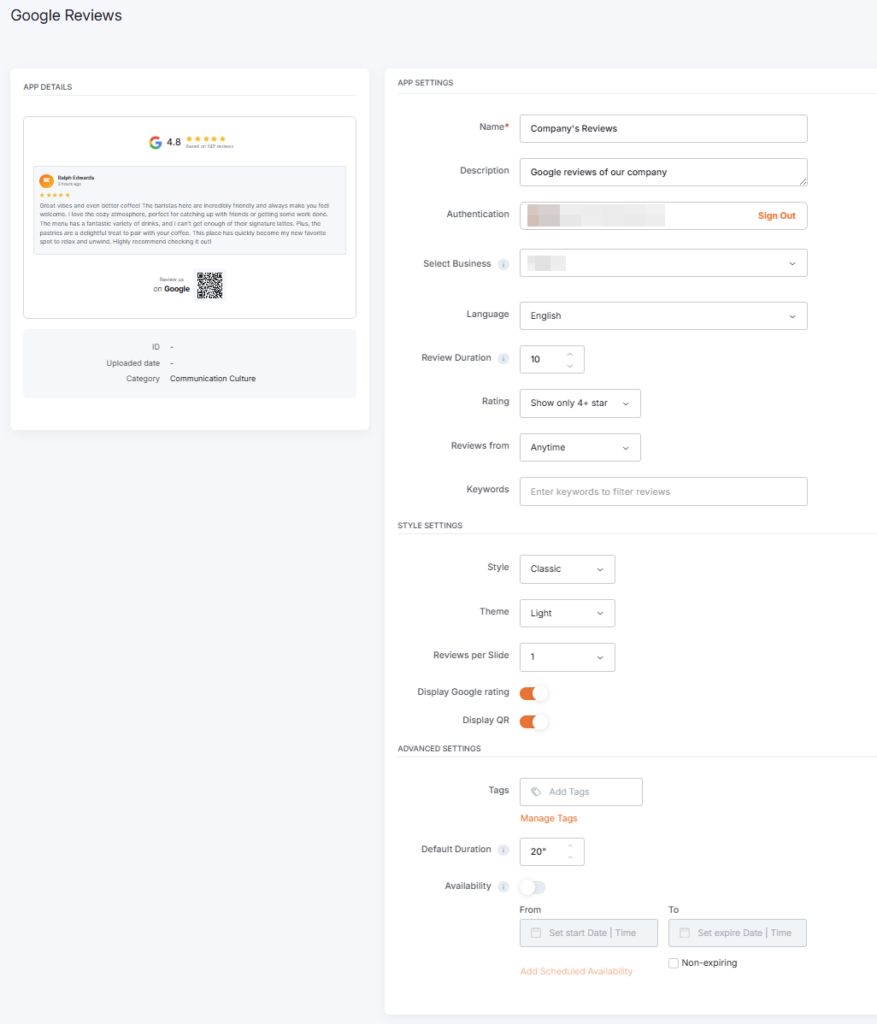
- The third field, Login with Google, is a button you must click to log in with the Google account that owns or manages your Business Profile and allow the access the platform requests. Back in the form, the Authentication field shows your account with a Sign Out link.
💡Nothing happened when you clicked Login with Google? Your browser probably blocked the popup. Look for a blocked-popup icon in the address bar, allow pop-ups for our platform, and click the button again. - From the Select Business drop-down menu, which appears once you log in, pick the business whose reviews you want to show. If the account manages several businesses, they all appear in the list.
- From the Language drop-down menu, select the language of the text the app adds around the reviews, such as the rating header and the review prompt. Reviews stay in the language their authors wrote them in. For more information about how the platforms handles languages, please check the F.A.Q.s section.
- Review Duration: Define how many seconds each slide stays on screen before the next one, from 10 to 300 seconds. By default, it is 10 seconds. A two-line review reads in 10 seconds, a full paragraph needs 20 or more.
- Rating: Keep only reviews with the stars you choose: Show only 5 star (default), Show only 4+ star, Show only 3+ star or Show all. Start strict and widen if too few reviews qualify.
- Reviews from: Keep only reviews posted within a period: Anytime (default), Last 12 months, Last 3 months, Last 2 months or Last 1 month. A short period keeps the screen current but can run dry for a business with few reviews.
- Keywords: Keep only reviews that mention the words you enter, for example “brunch” or “detailing”. Leave it empty to skip this filter. A review has to pass every filter to appear on screen, so check with Preview after each change.
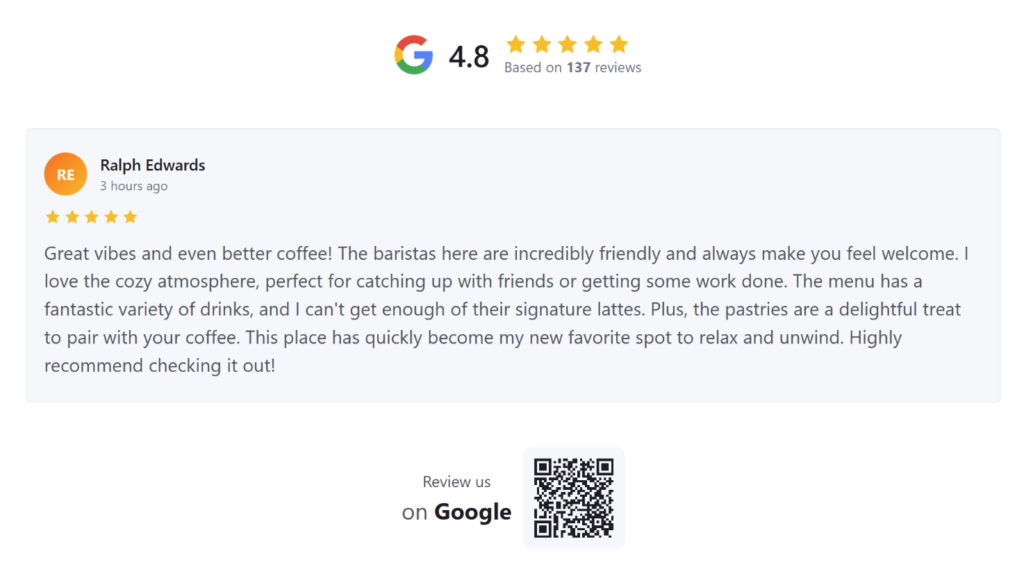
- Style: Choose the layout of each review card: Classic (default), Modern or Simple. Classic is the card shown in the App Gallery, with the reviewer’s initials, name, posting time, stars and text. Modern and Simple arrange the same information differently.
- Theme: Choose Light (default), Dark or Custom. Custom reveals four more fields: Text Color, Primary Background Color for the slide, Secondary Background Color for the review cards and Font Family. Keep the text and the card background far apart in contrast so the reviews stay readable from a distance.
- Reviews per Slide: Choose how many reviews share a slide: 1 (default), 2 or 3. Use 1 for long reviews or a small layout region, 2 or 3 when reviews are short or the app fills a wide region.
- Display Google rating: Show or hide the header with the Google logo, your average rating, its stars and the number of reviews it rests on. On by default, and worth keeping, since the overall rating carries more weight than any single review.
- Display QR: Show or hide the Review us on Google footer with a QR code that opens the reviews page of the business you selected. On by default. Turn it off on a screen nobody can scan.
- Tags: You can also provide a tag for this app to manage it better or to use it in a Tag-Based Playlist.
- Default Duration: Here, you can set how long the app appears in a playlist before the next item plays. By default, it is 20 seconds. Each slide stays for the Review Duration, so with the defaults a viewer sees two reviews per pass. Keep it a multiple of the Review Duration so the last slide does not get cut short.
- You can also set the Availability.
- Click Preview to watch the reviews the way a screen shows them, then click Save, and your app is ready to use. Find it in your My apps tab and add it to a playlist, a layout or a screen.
⚙️Saving the app is not the last step. Push your changes so your screens pick up the new content.
How the reviews refresh
- The platform checks the connected Business Profile for new and changed reviews about every 5 minutes. A new review that passes your filters joins the rotation on the next refresh.
- If a reviewer edits or deletes a review on Google, the screen follows on the next refresh.
- Filter and style changes are changes to the app itself. Save the app and push your changes so they reach your screens.
Google Reviews App Final Result
The examples below show how the platform displays your company’s Google Reviews in its preview and on screens.
Security and privacy
- You sign in on Google’s own page. Our platform never sees or stores your Google password.
- Our platform uses the connection to read the reviews and rating of the business you select, nothing more. The app never replies to, edits or removes a review.
- Reviews are public content. The app shows each one as Google shows it: the reviewer’s name, star rating, posting time and text.
- Your players receive the finished slides only. No Google credentials ever reach a screen.
- You stay in control. Click Sign Out in the Authentication field to disconnect the account. The app then stops refreshing until you log in again.
⚠️Reviews are public, but a screen makes them louder. Run Preview with your final filters before the app reaches a customer-facing screen, and check it again after you widen Rating.
Best practices
- Start strict, then check the pool. Keep Show only 5 star and Anytime first. If Preview cycles through only a handful of reviews, widen Rating to 4+ star before you shorten Reviews from.
- Give people time to read. A viewer catches a short review in 10 seconds and a full paragraph in 20 or more. When in doubt, add seconds. Nobody complains about a review that stays a little too long.
- Put the QR code within reach. The footer earns you new reviews only where a customer can scan it: a counter, a reception desk, a screen at the register. On a high-mounted or outdoor screen, turn Display QR off and give the reviews the space.
- Feature what you sell with Keywords. A bakery screen that shows only reviews mentioning “croissant” sells croissants. Keep the pool healthy by pairing a keyword with Show all or 4+ star.
- Match the screen around it. In a layout next to a menu or a video, pick the Theme that fits the surrounding content and keep Reviews per Slide at 1 in a small region.
- Log in with a stable Google account. The connection depends on the account you sign in with. Use a company account that stays an owner or manager of the profile, not an employee’s personal one.
Troubleshooting
Most issues come from the filters or from the Google account. Start there.
Your browser most probably blocked the pop-up. Allow pop-ups for our platform and click the button again.
The account you signed in with is not an owner or manager of that profile, or the profile is not verified. Click Sign Out, sign in with the right account or ask an owner to add you under People and access, then log in again.
Your filters leave nothing to show. Showing only 5-star reviews combined with a short period or a Keyword can empty the pool for a business with few reviews. Widen one filter at a time and check with Preview. Also, check that you selected the right business and that the profile has public reviews.
Allow about 5 minutes for the refresh, then check that the review passes your Rating, Reviews from, and Keywords filters and that the screen is online in your Screens list. If you edited the app itself, push your changes.
Raise the Review Duration, set Reviews per Slide to 1, and give the app a larger region or the full screen. Pick Dark or Custom if the Light theme fights the room’s lighting.
The playlist moved on because Default Duration ended mid-slide. Set the Default Duration to a multiple of Review Duration, for example, 60 seconds for six 10-second slides.
The app region is too small or the screen is too far away. Enlarge the region, move the app to a screen customers stand close to or turn Display QR off.
Your organization restricts which apps can access Google Workspace accounts. Ask your Google Workspace administrator to allow the platform, or sign in with an account your administrator has cleared for third-party apps.
The Google account lost access to the profile, changed its password or your organization disabled it. Click Sign Out, then Login with Google, and select the business again.
F.A.Q.s
Got questions? We’ve got answers! This section covers the questions we hear most about the Google Reviews app.
You control what qualifies, not individual reviews. Use Rating, Reviews from, and Keywords to narrow the pool. A review you never want on a screen needs a stricter filter or action on Google from your Business Profile.
Divide Default Duration by Review Duration and multiply by Reviews per Slide. With the defaults, 20 seconds and 10 seconds with 1 review per slide, a viewer sees two reviews per pass. To show six, set Default Duration to 60 seconds or raise Reviews per Slide.
Each app links to one business. Create one Google Reviews app per location and add them to the same playlist, or give each screen the app for its own location.
To the Google reviews page of the business you selected, where they can read the reviews and leave one of their own. Turn Display QR off if you do not want the footer.
Owner or manager. Both roles can connect the profile to the app, and any Google account works, personal or Google Workspace, as long as it holds one of the two roles. If you are neither, ask an owner to add you under People and access in Business Profile settings.
The platform checks for new reviews about every 5 minutes. A new review appears on the next refresh, as long as it passes your Rating, Reviews from, and Keywords filters.
Yes. The app shows each review as Google shows it publicly: the reviewer’s name, star rating, posting time, and text.
Yes. Set Theme to Custom and the app reveals Text Color, Primary Background Color for the slide, Secondary Background Color for the review cards, and Font Family. Light and Dark are the ready-made alternatives.
The platform translates only its built-in text: labels, headings, and any text the Google Reviews app generates itself, such as the rating header, the posting time, and the Review us on Google prompt. The platform does not translate content that comes from external platforms or APIs. For this app, that means the reviews themselves, the reviewer names, and the business name, which appear exactly as Google supplies them.
The connection depends on that Google account. If someone disables the account or removes it from the Business Profile, the app stops refreshing. Open the app, click Sign Out, log in with an active owner or manager account, and select the business again.