Overview

The Sign In App app shows who is signed in at your Sign In App sites today, grouped by visitor type such as Employees, Visitors, and Deliveries. Each visitor appears as a card with a photo, name, role, and check-in time. The header shows how many of the day’s expected visitors have arrived.
The app cycles through each group of each site and starts over after the last one. Data covers the current day only, so the board resets at midnight. It works on landscape and portrait screens and runs on all player types.
Before You Start
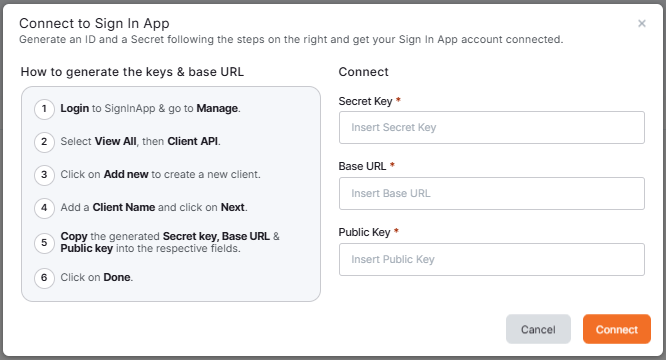
You need three things from your Sign In App portal. The Connect to Sign In App window in our platform repeats the key steps, and the View Guide in Sites Setup repeats the site URL steps.
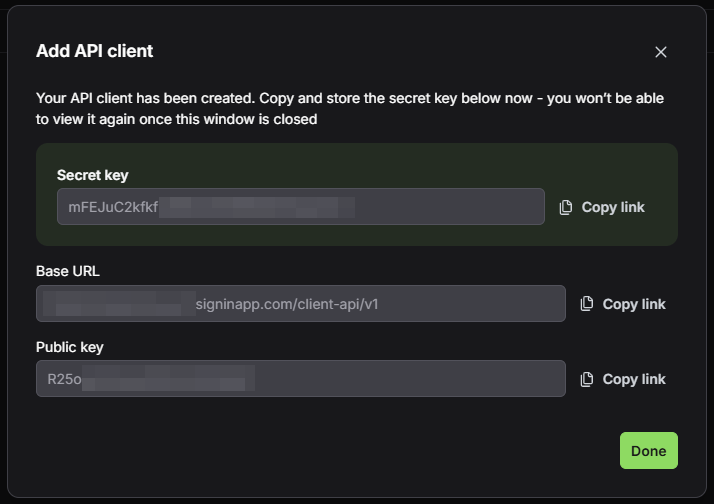
API credentials
- Log in to Sign In App and go to Manage.
- Select View All, then Client API.
- Click Add new.
- Enter a Client Name and click Next.
- Copy the Secret Key, Base URL, and Public Key.
- Click Done.
⚠️Sign In App shows the Secret Key only once. If you did not copy it, delete the client and create a new one.
Visitor groups
The app groups visitors by the groups in your Sign In App account, under Manage > Visitor groups. After you connect, our platform lists them so you can select which ones to display.
Site URLs
For each site you want to display:
- In Sign In App, go to Manage > Sites and open the site.
- Go to Settings > Details.
- Copy the URL from your browser’s address bar. It follows the format account.signinapp.com/manage/sites/000/details, where the number is the site ID.
Creating the Sign In App
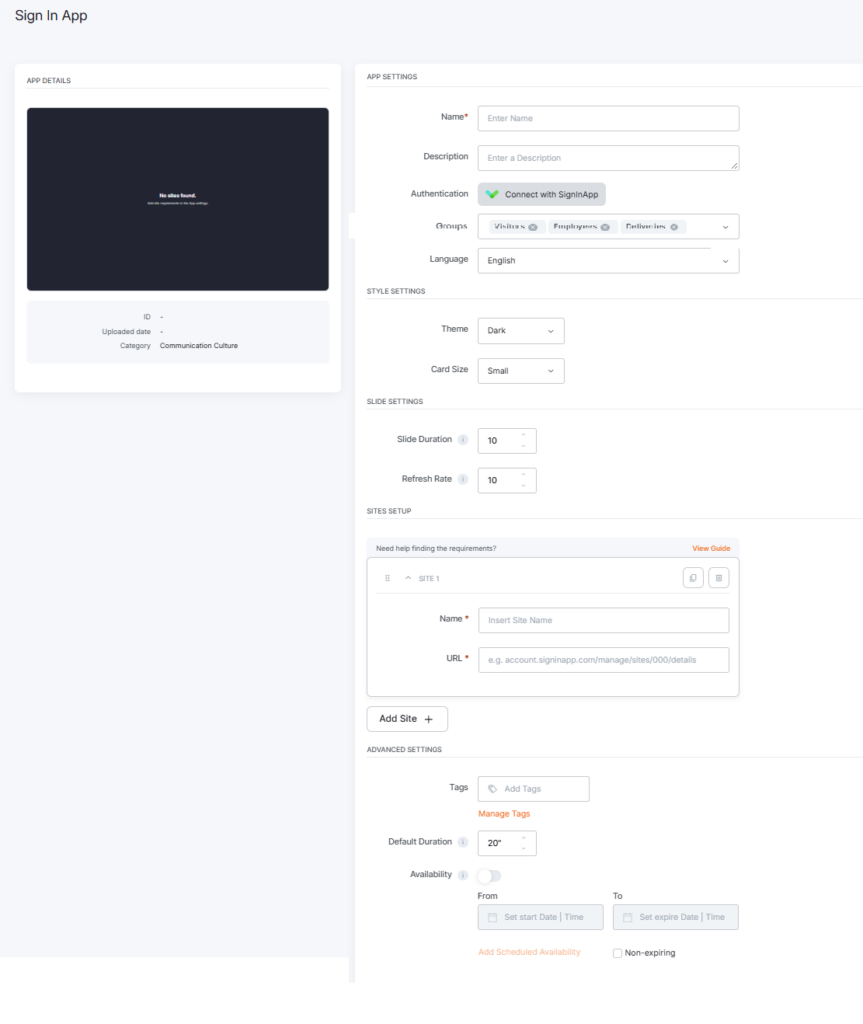
To show who is signed in at your sites, click on the Sign In App app within your app gallery to set it up, and complete the app details as follows:
- Navigate to the left Main Menu and select the Apps tab.
- From the Apps Gallery, find and select the Sign In App app.
- Once the app pop-up window appears, click the Use App button.
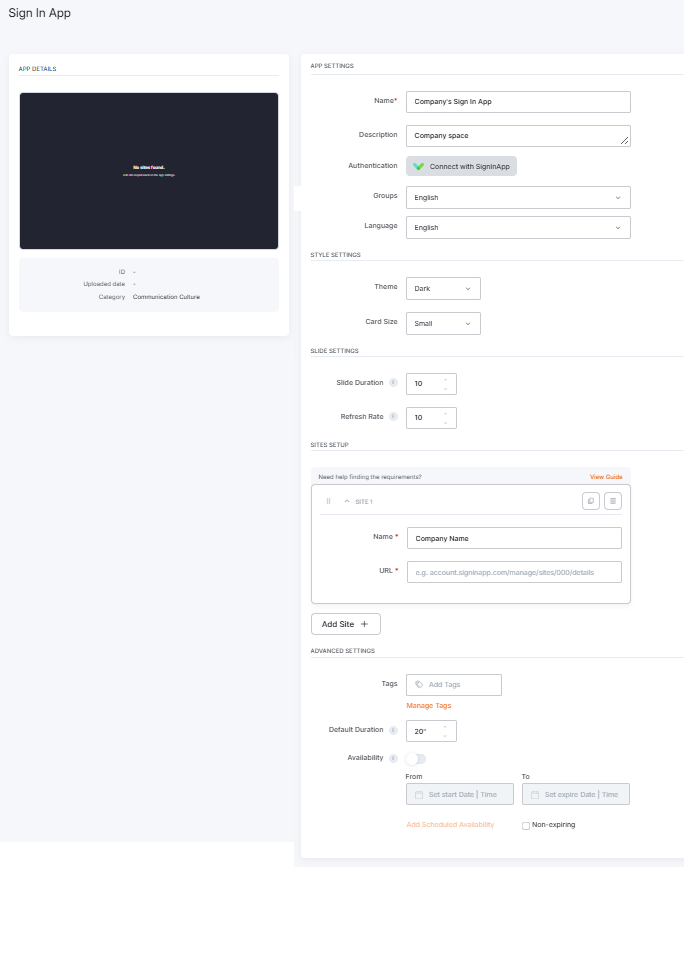
- Name: give the app a name. Description is optional.
- Authentication: click Connect with SignInApp. In the Connect to Sign In App window, paste the Secret Key, Base URL, and Public Key from your API client and click Connect. The platform checks the credentials by retrieving your visitor groups. When the connection succeeds, the Groups field appears under Authentication (step 6).
- Groups: appears under Authentication once you connect, filled with the visitor groups from your Sign In App account. Select the groups to display. The app shows one section and one bottom-bar chip per selected group. With no group selected, the screen shows “No content”.
- Language: select the language for the app’s built-in text, dates, and check-in times. The app supports more than 20 languages.
- Theme: choose Light or Dark.
- Card Size: Small fits up to 24 visitors per page. Large fits up to 15 in landscape and 12 in portrait.
- Slide Duration: the seconds each page stays on screen before the app moves on (5 to 60, in steps of 1). The default is 10.
- Refresh Rate: how often, in minutes, the app fetches new sign-in data (15 to 180, in steps of 5). The default is 10. The board stays on screen while the data refreshes.
- Sites Setup: for each site, enter a Name for the site tab and paste the site URL from Before You Start. Click Add Site for more sites. Use the row icons to duplicate or delete a site and the handle to reorder.
- Tags: you can also provide a tag for this app to manage it better.
- Default Duration: set the default duration for which the app will appear in a playlist.
- Availability: you can also set when the app is available. You can find more details in the Media Availability guide.
- Click Save, and your app is ready to use.
Sign In App Final Result
The example below showcases how the platform displays the Sign In App in its preview and on screens.
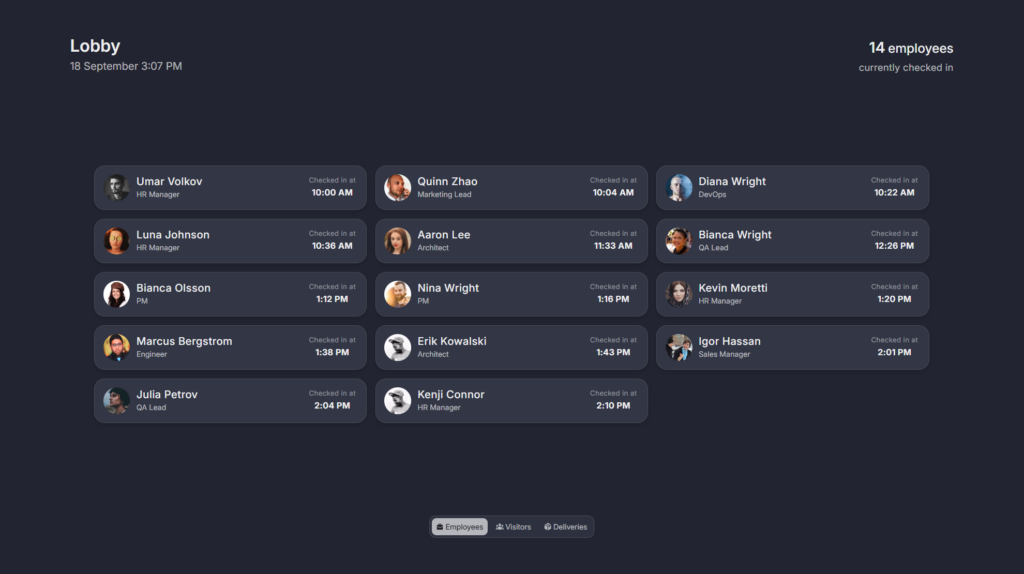
ℹ️Preview: the preview in our Portal uses sample visitor data. Your site names are real, the visitors are generated. Assign the app to a screen to see live sign-ins.
F.A.Q.s
Got questions? We’ve got answers! This section addresses common questions about the Sign In App.
The app shows sign-ins for the current day only. At midnight, the Sign In App starts a new day, and the board resets.
Open the app, go to Sites Setup, and make sure at least one site has both a Name and a valid URL. Save and push the changes to your screen.
The connection works, but nobody from that group has signed in yet today.
The Groups field appears only after a successful connection. Click Connect with SignInApp, enter your Secret Key, Base URL, and Public Key, and click Connect.
Yes. Select only the groups you want in the Groups field. You can also restrict which groups a site shows in the Sign In App, under the site’s group visibility settings.
Check that the Secret Key, Base URL, and Public Key match your API client exactly, with no extra spaces, and that each value is in its matching field. If you lost the Secret Key, delete the client in the Sign In App and create a new one.
The app keeps showing the last data it loaded and retries every 15 seconds. An error message appears only when the app has no data to show at all.
Yes, on screens with Interactivity enabled in the screen settings. Viewers can tap the site tabs, group chips, arrows, and drop-down items to jump to a site, group, or page. The app pauses automatic cycling for 10 seconds after a tap and then resumes from the new position. The preview in the Portal does not support interaction.
No. Only the platform’s built-in text is translated: labels, headings, messages, and the date and time format. Names, roles, and group names come from the Sign In App exactly as you entered them there.