Overview

The Qlik Sense app lets you show Qlik Cloud dashboards and sheets on your screens. If your team already uses Qlik Cloud, you can bring that live analytics content to shared displays without rebuilding dashboards or exporting reports. This makes it easier to keep KPIs visible in offices, factory floors, meeting rooms, sales floors, and executive spaces. You can reuse the Qlik content your team already maintains, and keep everything updated automatically.
Before you start
Before you create a Qlik Sense app in the platform, make sure you have:
- A platform account
- A Qlik Cloud account
- At least one Qlik app with a sheet you want to display
- Access to the Qlik Cloud Management Console
- Permission to create and manage OAuth clients in Qlik Cloud
You will also need these values from Qlik Cloud, which will be analyzed further below on how to create them:
- Tenant URL
- Client ID
- Client Secret
⚙️ App Compatibility
The specific app works with a Raspberry Pi Player and the Web Player. More players will be supported in the near future.
⚠️ Important Note
Qlik Sense in the platform supports Qlik Cloud only. Anything else is not supported.
Set up Qlik Cloud for the platform
Before the platform can load your Qlik Sense content on the app, you need to create an OAuth client in Qlik Cloud and make sure it can access the right content.
Create an OAuth client in Qlik Cloud
- Sign in to your Qlik Cloud tenant.
- Open the Management Console.
- Go to OAuth.
- Create a new OAuth client.
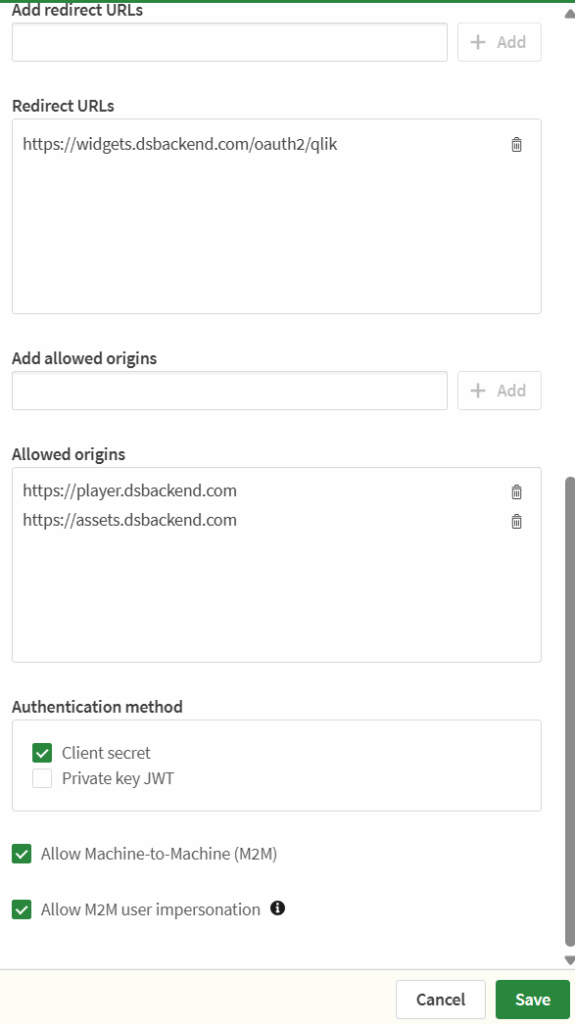
- Fill in the value “https://widgets.dsbackend.com/oauth2/qlik” inside the Redirect URLs field.
- Also, fill in the values “https://assets.dsbackend.com“, and “https://player.dsbackend.com” inside the Allowed origins field.
- Enable Machine-to-Machine (M2M) authentication.
- Enable M2M user impersonation, if your Qlik setup requires it.
- Set the consent method to Trusted.
- Save the newly created OAuth client.
- Copy the Client ID and Client Secret.
⚠️ Important: Qlik may only show the Client Secret once. Save it immediately.
ℹ️ You will enter these values in the platform when you authenticate the Qlik Sense app.
Make sure the connection can access the right content
Next, make sure your OAuth client can access the spaces and apps you want to display.
That usually means:
- The OAuth client has the required scopes
- The authenticated identity can access the relevant spaces
- The target apps, and sheets are available to that connection
ℹ️ If your content does not appear later in the platform, the cause is usually permissions or access settings in Qlik Cloud.
Confirm your Tenant URL
Your Tenant URL is your Qlik Cloud domain, for example: your-company.eu.qlikcloud.com
Use the tenant domain itself unless your Qlik setup specifically tells you otherwise.
Create a Qlik Sense app in the platform
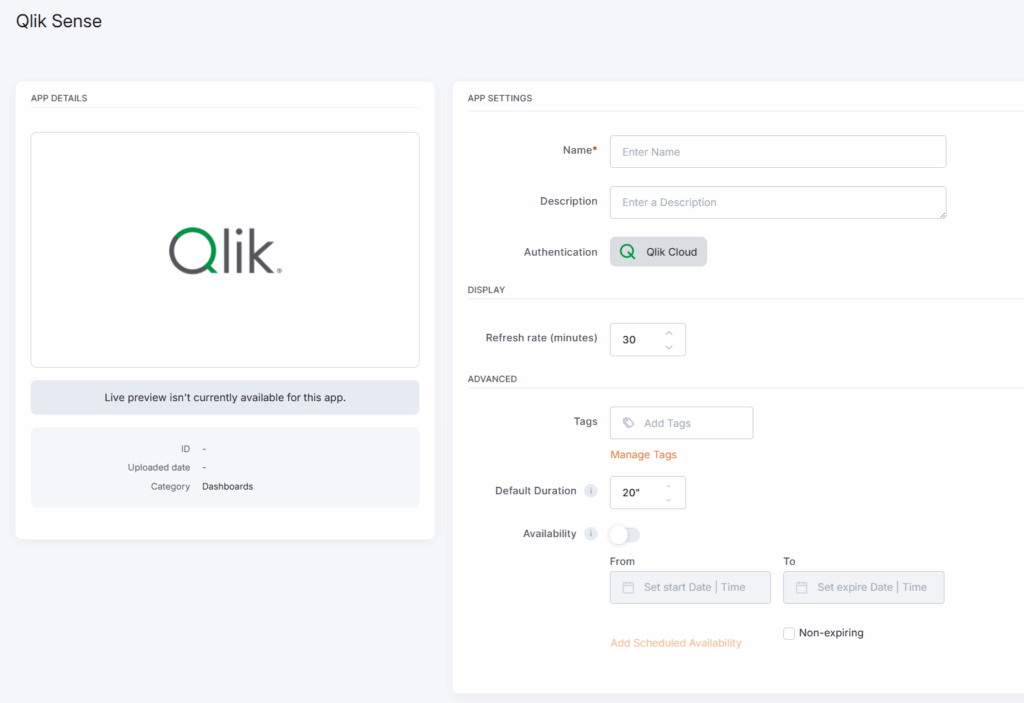
To display Qlik Sense content on your screens, click on the Qlik Sense app within your app gallery to set it up, and complete the app details as follows:
- Enter a Name, and optionally enter a Description.
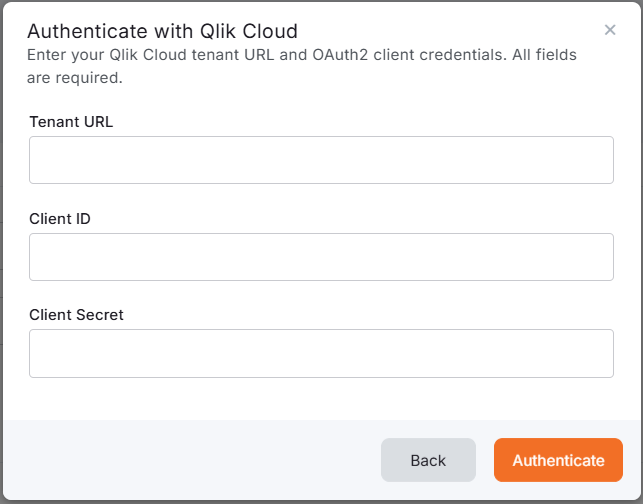
- Under Authentication, click the Qlik Cloud button:
- The platform opens the Authenticate with Qlik Cloud pop-up window, where you need to enter your:
- Tenant URL
- Client ID
- Client Secret
- Then, click Authenticate. After a successful connection, the platform loads the Qlik content available through that account.
- The platform opens the Authenticate with Qlik Cloud pop-up window, where you need to enter your:
- Once the app is authenticated, you can choose what to display with the following two options (Space, App, Sheet):
- Space: Use Space to narrow the list when your Qlik Cloud tenant includes apps across multiple workspaces.
- App: The App is the Qlik analytics app that contains the content you want to display.
- Sheet: The Sheet is the dashboard page you want to show on screen.
- Refresh rate: Use it to control how often the platform reloads the selected Qlik content. The default refresh rate is 30 minutes.
- Tags: You can also provide a tag for this app to manage it better.
- Default Duration: You can configure this option so that the App will appear in a playlist for a specific duration.
- You can also set the Availability.
- Click “Save,” and your App is ready to use and assign it to a screen or playlist.
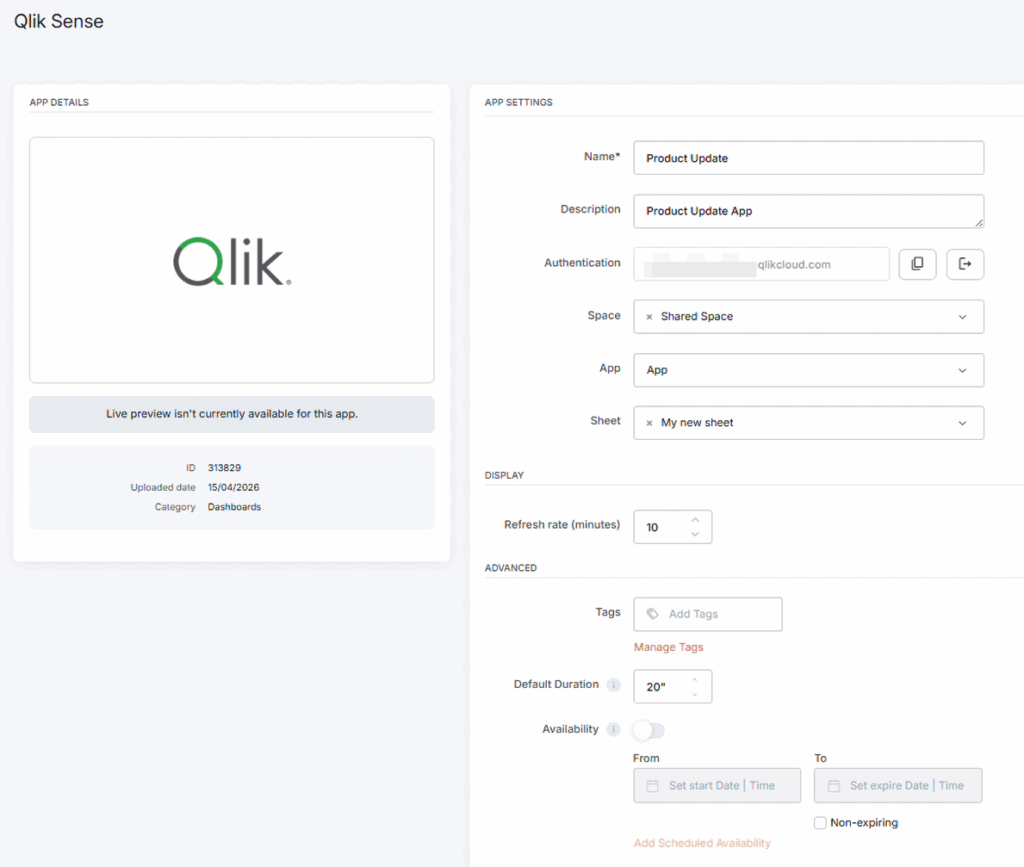
Qlik Sense app final result
The examples below showcase how the platform displays Qlik Sense dashboards in its preview and screens.
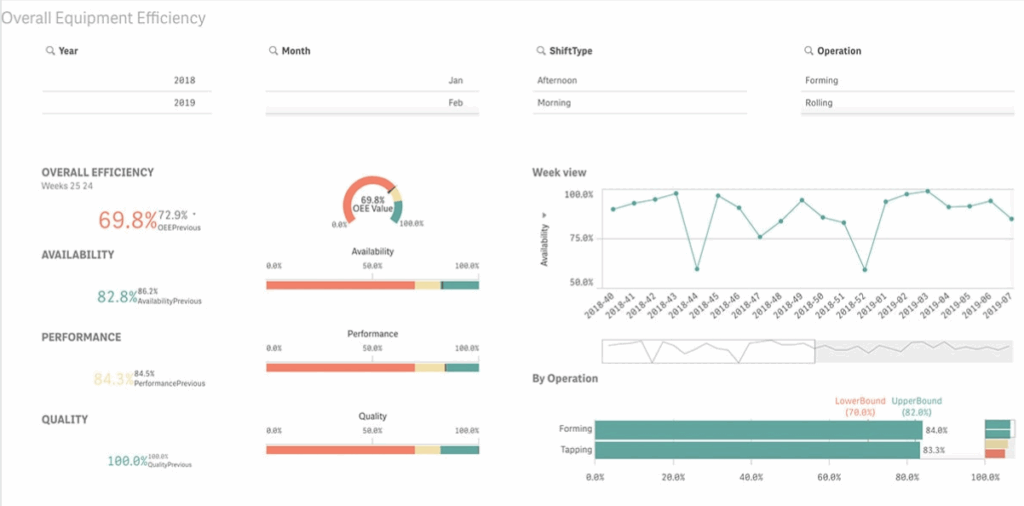
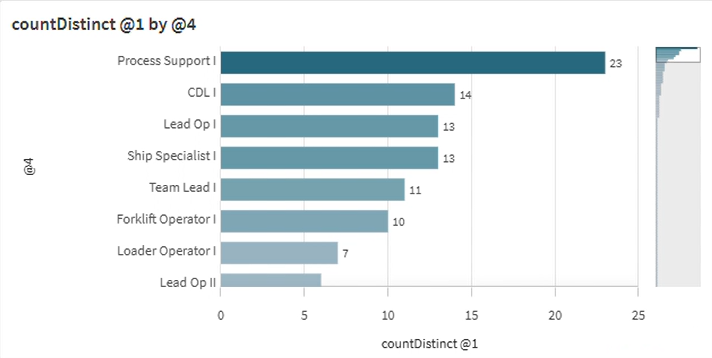
Best practices
You can browse through the best practices for this app by clicking on each expandable arrow.
Design sheets for shared screens
Dashboards built for laptop use may not always work well on a larger display. Use layouts with clear structure, larger visual elements, and readable labels.
Create dedicated sheets for single-chart displays
Because the app displays full sheets, the best way to show a single KPI or chart is to create a dedicated sheet in Qlik Cloud that contains only that visualization.
Choose a practical refresh rate
Set the refresh rate based on how often the data changes and how quickly viewers need to see updates.
Troubleshooting
– Authentication fails -> Check that:
- The Tenant URL is correct
- The Client ID is correct
- The Client Secret is correct
- The OAuth client is configured for M2M authentication
- The consent method is set to Trusted
– Apps, or sheets do not appear -> Check that:
- whether the authenticated connection has access to the correct spaces
- whether the target app exists in Qlik Cloud
- whether the selected app contains the expected sheets
- whether the OAuth client has the required scopes and permissions
This issue is usually caused by access restrictions in Qlik Cloud.
– Only some spaces appear:
- If only some spaces are visible, the authenticated identity probably does not have access to the missing spaces.
- Review your Qlik Cloud permissions and make sure the OAuth-related identity or bot user can access all relevant shared or managed spaces.
– The wrong view appears on screen -> Verify that you selected the correct:
- App
- Sheet
– The dashboard looks outdated: If the dashboard on screen looks outdated, reduce the refresh rate. The platform reloads content according to the configured interval, so changes in Qlik Cloud may not appear until the next scheduled refresh.
F.A.Q.s
Got questions? We’ve got answers! This section addresses common questions about the Qlik Sense app.
Qlik Sense in the platform displays full sheets only. To show a single chart or KPI, create a dedicated sheet in Qlik Cloud that contains only that visualization, then select that sheet in the platform.
No. Once the connection is authenticated, the platform reuses it for future Qlik Sense apps. You only need to authenticate again if you change credentials or switch to a different Qlik Cloud tenant.
Yes. Create separate Qlik Sense apps in the platform and assign each one to the appropriate screen or playlist.
Not directly. The app displays full sheets. To show a single chart, create a Qlik sheet containing only that chart, then select it in the platform.
Yes. The platform stores your credentials encrypted on its servers, and they are never exposed to player devices.
Your screen updates automatically at the next refresh interval. You do not need to reconfigure the app in the platform every time the dashboard changes.
Yes. You can reuse the same Qlik app across multiple platform app configurations and apply different sheets depending on the screen.