Overview

The Custom Feed app is a built-in platform app that can be greatly configured to display a rotating mix of curated, workplace-safe content, including trivia and quotes. It gives you an easy way to make your own static screens more engaging with minimal effort. You can use it on shared-space screens such as break rooms, lobbies, reception areas, hallways, and waiting rooms, or place it inside a layout alongside announcements, dashboards, schedules, or branding. With simple setup and flexible styling options, Custom Feed is a practical choice for teams that want active, low-maintenance screens.
Create a Custom Feed app
To display custom feed content on your screens, click on the Custom Feed app within your app gallery to set it up, and complete the app details as follows:
- Enter a Name.
- Add an optional Description.
- Set the Slide Duration to control how long each card stays on screen. The default value is 10 seconds.
- In the Style Settings section, you can configure the look and feel of your feeds by adjusting one or more of the following settings:
- Font Family: Use this option to configure the font type of your text.
- Default Text Color: Use this option to configure the color of your text.
- Default Background: Use this option to configure the background color of your feed. Instead of a background color, you can also use an image.
- Transition Style: Use this option to configure the transition style for your feeds.
- Logo: Use this option to upload your company logo and give the app a more branded look.
- Display Date & Time: You can enable this option to display the current date and time on each slide.
- Adjust each Slide’s options under Feed Setup, to create and configure as well as duplicate and delete your custom Feed Slides. Moreover, depending on whether the “Use Default Style” option is enabled or disabled, you have different configuration options per Feed Slide, which you can adjust:
- ✅Use Default Style: While this option is enabled, you can configure the following options:
- Template: Here, you can select between the General, Trivia, and Quote options.
- Based on your aforementioned “Template” selection, you then have the following options:
- General: Header -> Body -> Footer
- Quote: Quote -> Auther -> Details
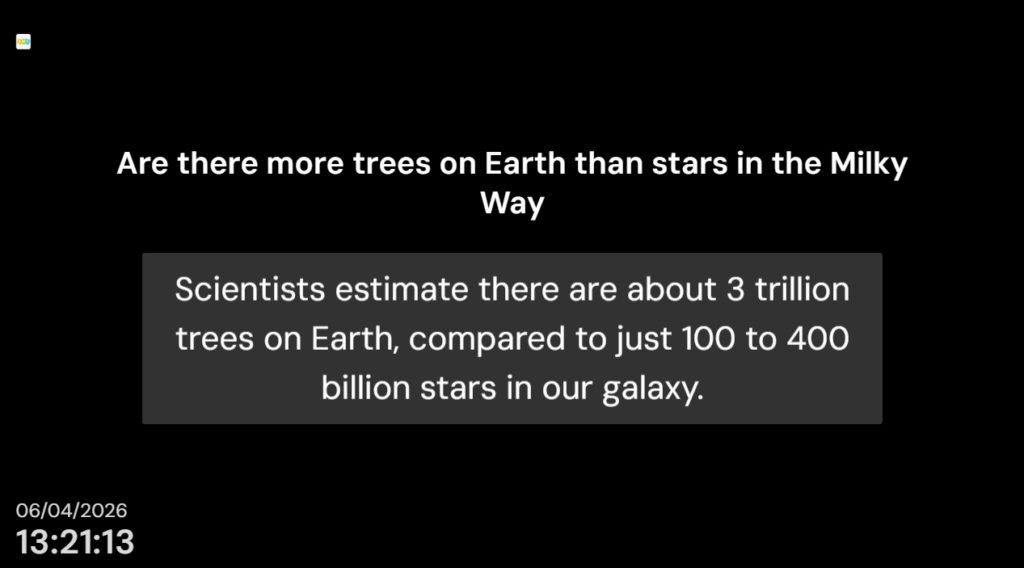
- Trivia: Question -> Answer
- ❌Use Default Style: While this option is disabled, you can configure the following options:
- Template: Here, you can select between the General, Trivia, and Quote options.
- Text Color: This is the text color for the specific Feed Slide only.
- Background: This is the background color for the specific Feed Slide only.
- Add Slide +: Click this button to add a new Feed Slide, so as to then customize it according to your needs.
- ✅Use Default Style: While this option is enabled, you can configure the following options:
- Tags: You can also provide a tag for this app to manage it better.
- Default Duration: You can configure this optionso that the App will appear in a playlist for a specific duration.
- You can also set the Availability.
- Click “Save,” and your App is ready to use and assign it to a screen or playlist.
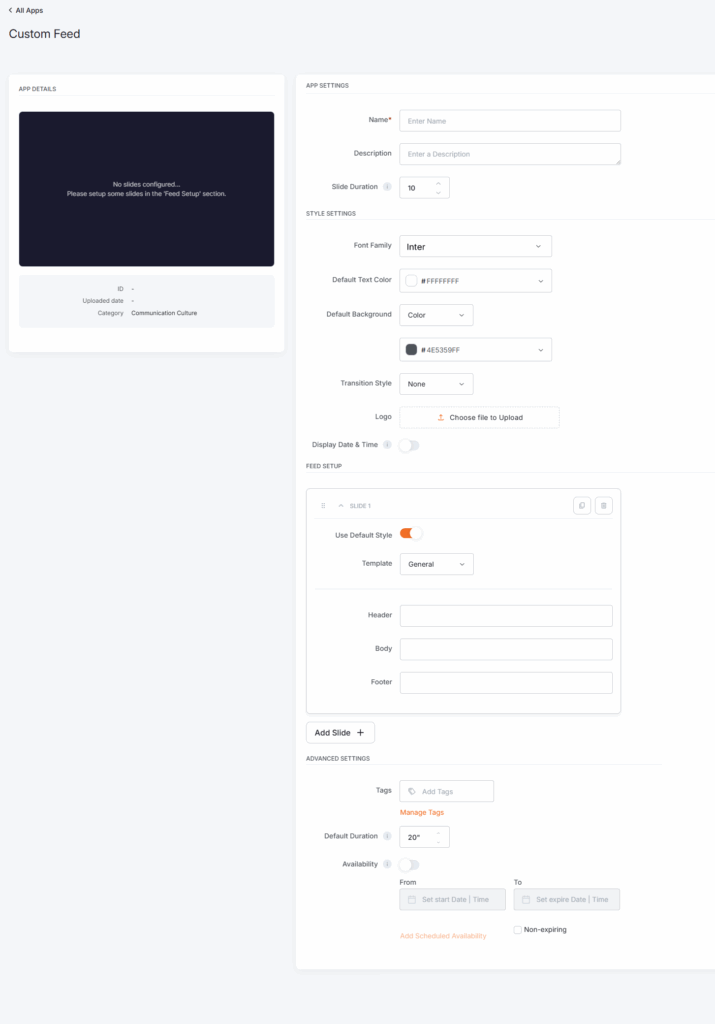
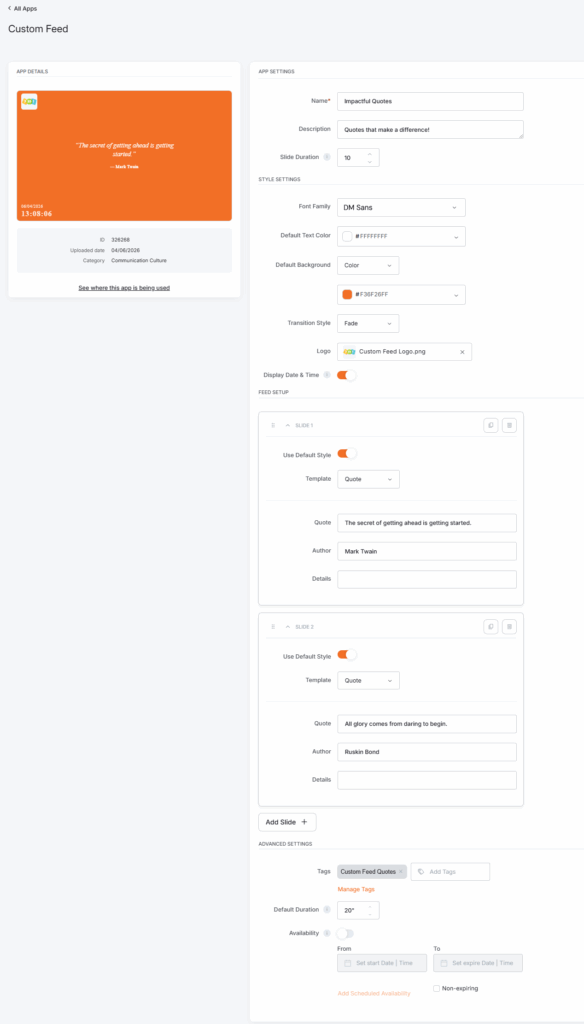
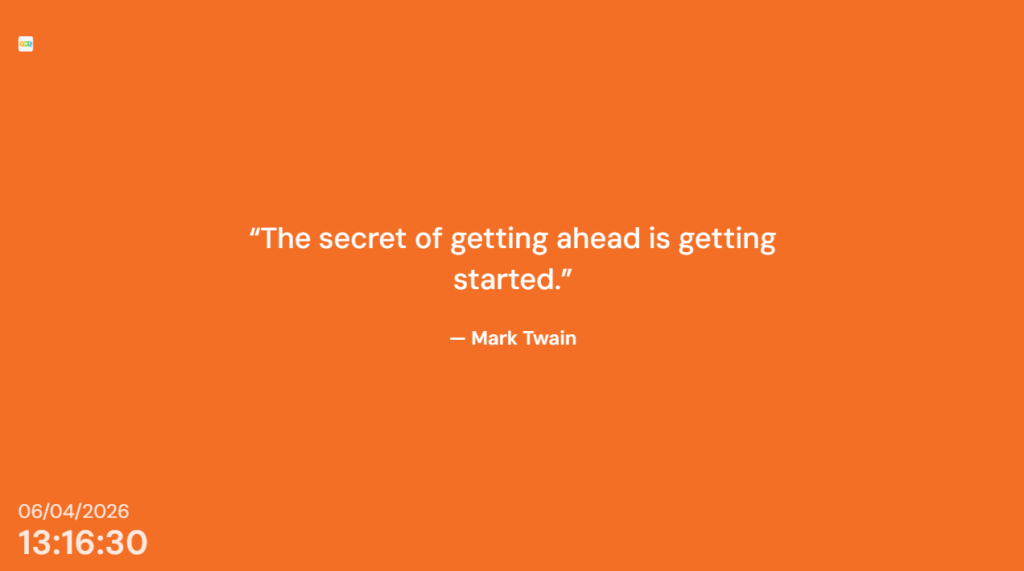
Custom Feed app final result
The examples below showcase how the platform displays the Custom Feed app in its preview and on screens.
Best practices
To get the best results from Custom Feed:
- Use it on screens in shared spaces where people look up throughout the day
- Combine feed categories if you want more variety
- Use the live preview to review your setup before saving
- Place it in a layout when you want to balance light content with business updates
F.A.Q.s
Got questions? We’ve got answers! This section addresses common questions about the Custom Feed app.
Yes. The app editor includes a live preview panel so you can review the look of the app while configuring it.
Yes. Custom Feed works both as a standalone full-screen app and as part of a layout.