Overview
You can reboot a screen remotely from the Portal, so nobody has to unplug the player on site. Reboot one or more screens at once from the Screens list, or a single screen from its Screen Details page.
Reboot Screens from the Screens List
Use this option to reboot one screen or several screens at once:
- In the Portal, click Screens in the main menu.
- Select the checkbox next to each screen you want to reboot.
- Click Actions at the bottom of the list.
- Click Reboot Player.
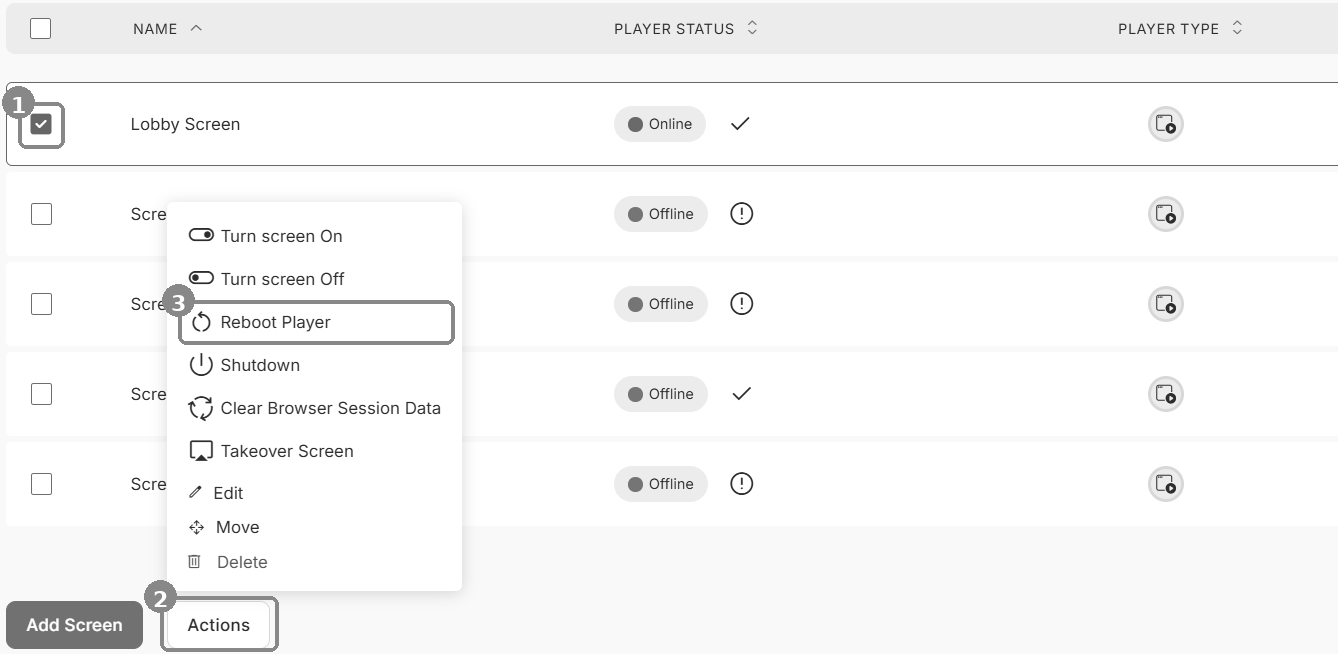
Each selected player restarts. It goes offline for a short while and then comes back online with its content.
Reboot Player is not Shutdown
Shutdown sits right below Reboot Player in the menu. Shutdown turns the player off, and someone has to unplug and plug in its power cord to bring it back online.
Reboot a Screen from the Screen Details Page
- In the Portal, click Screens in the main menu.
- Click the name of the screen you want to reboot to open its Screen Details page.
- Click Actions next to Save & Push to this Screen.
- Click Reboot Player.
Good to know
The actions in this menu depend on the player type. For example, Web Players show Reload Player instead of Reboot Player.
F.A.Q.s
Got questions? We’ve got answers! This section addresses common questions about the Reboot Player feature.
Should I use Reboot Player or unplug the player?
If the screen is online, use Reboot Player, so nobody has to go on site. If the player is offline or doesn’t respond, unplug its power cable and plug it back in. Don’t remove power while the player shows a blinking message in the bottom-right corner of the screen, such as Loading, Configuring or Downloading.
Can I schedule screens to reboot automatically?
Yes. Use the scheduled reboot option to set the day and time each player reboots. For details, see Set scheduled reboot.
How can I check when a screen last rebooted?
Add the Uptime column to the Screens list with the Columns button. Uptime shows the time since the player’s last startup or reboot. For details, see the Screen’s Table Manual.
Why is the Actions button greyed out on the Screen Details page?
The screen is offline. The Actions button on the Screen Details page works only while the screen is online, so check that the player has power and an internet connection.
How do I reset a player to its factory settings?
To reset a Player to its factory settings, contact your provider. For other players, such as Android, Samsung Tizen or LG webOS, follow the device vendor’s instructions.